
Windows Mapping Tools
Download the mapping tool that matches your workflow. DaBaiYingShe Global 6.97 and DaBaiYingShe 6.99 are two different software packages, not old and new versions of the same program.
DaBaiYingShe Global 6.97
Windows mapping tool package using the enhanced mapping server.
Download DaBaiYingShe Global 6.97 for Windows (EXE)
DaBaiYingShe 6.99
Windows mapping tool package using the standard mapping server.
Download DaBaiYingShe 6.99 for Windows (EXE)
Remote Programming Methods
Method 1: DOIP / ENET / 6154 Vehicle Connection
Use this method when the vehicle-side PC connects to the vehicle through a DOIP, ENET, or 6154 adapter and the programming PC operates remotely.
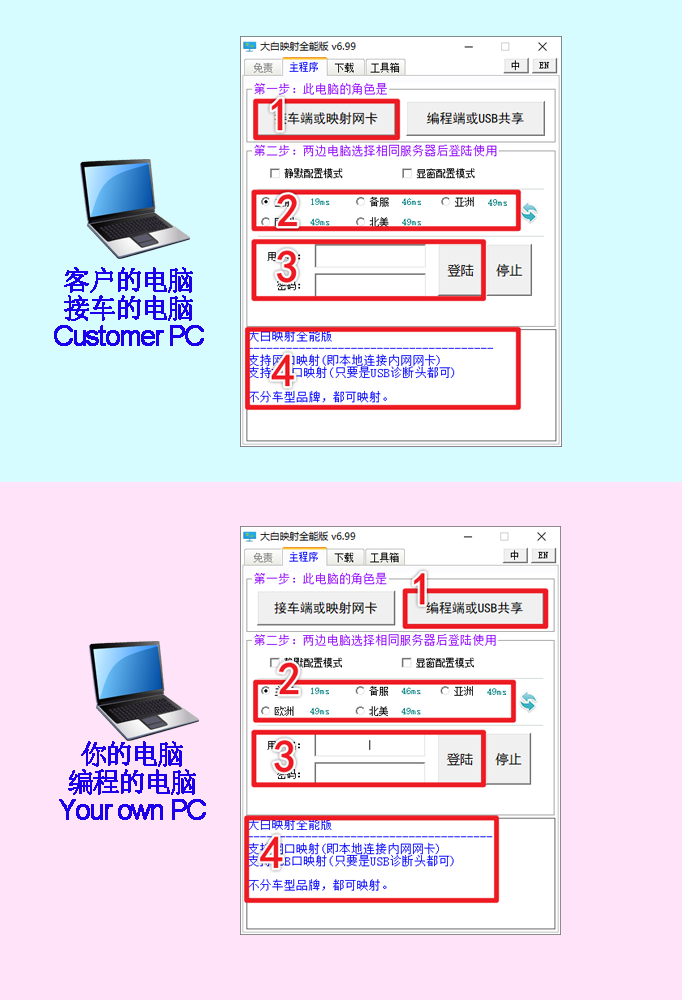
- On the vehicle-side PC, select Vehicle Connection or Mapping Adapter.
- On the programming PC, select Programming-side USB Sharing.
- On both PCs, select the same server region.
- Sign in with the same account and password on both sides.
- If the vehicle-side PC asks you to choose a network adapter manually, select the adapter connected to the vehicle.
Keep the vehicle connection stable throughout the programming session. Do not change the selected server or account while either side is connected.
Method 2: USB Device Sharing
Use USB sharing when the programming PC needs remote access to a USB device connected to the vehicle-side PC. In DaBaiYingShe, open Download and select USB Share Download to obtain the USB sharing tools.
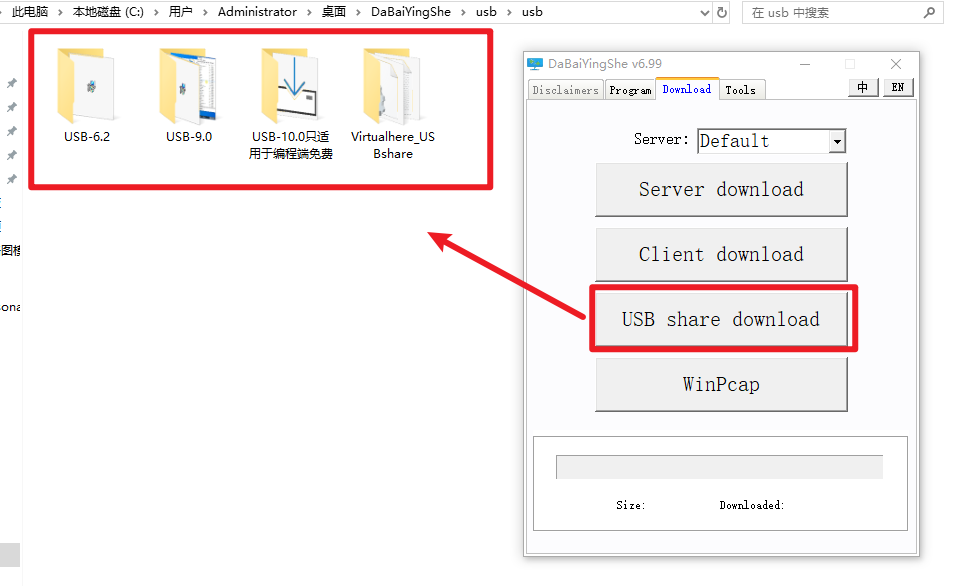
Choose one of the following USB sharing tools for a session. Do not run both tools for the same USB device at the same time.
Option A: USB Network Gate 6.2
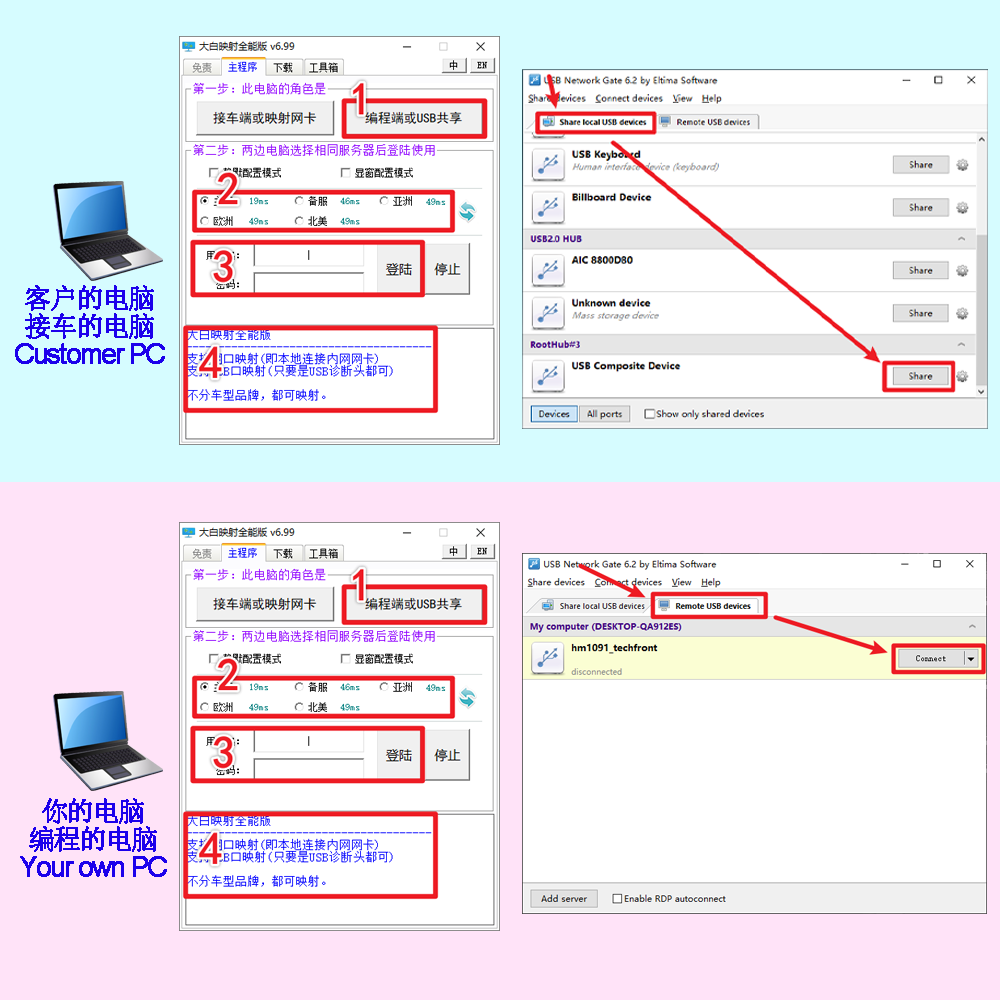
- On the vehicle-side PC, open USB Network Gate and select Share local USB devices.
- Find the required USB device and select Share.
- On the programming PC, open USB Network Gate and select Remote USB devices.
- Locate the shared device and select Connect.
Option B: VirtualHere
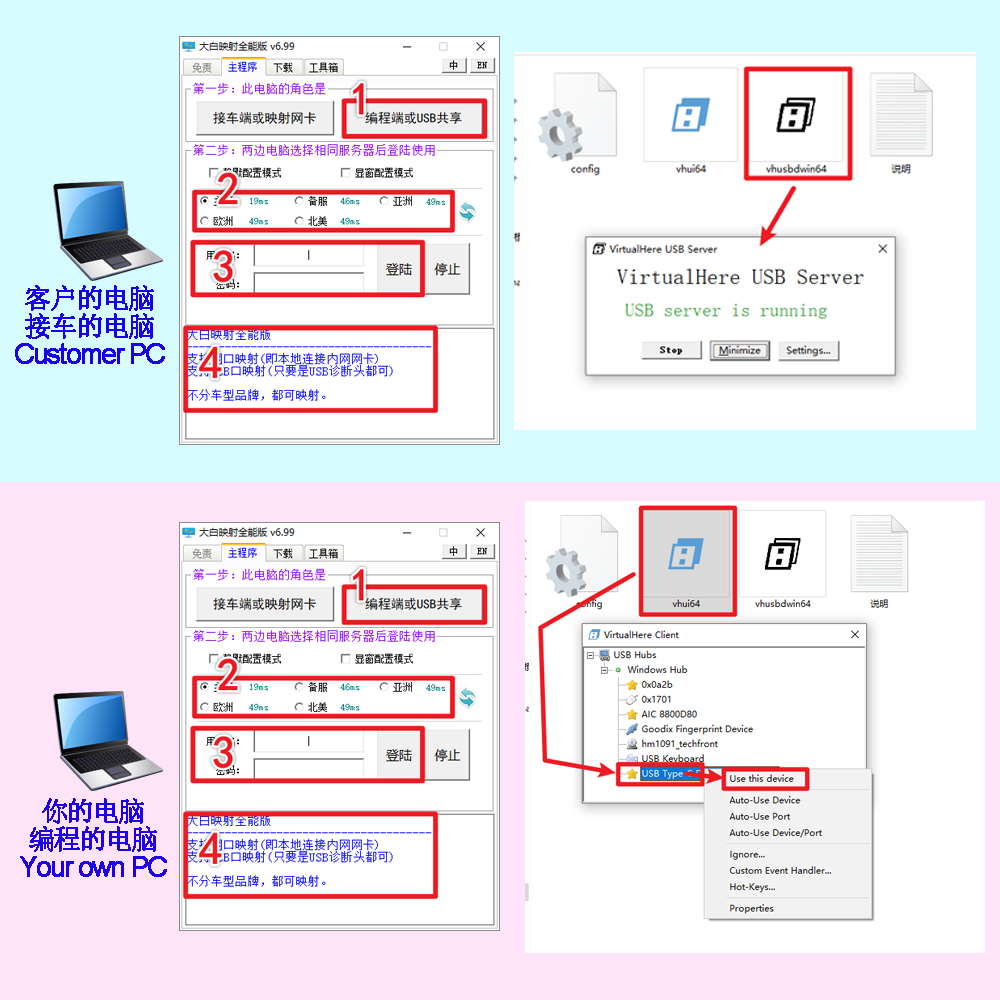
- On the vehicle-side PC, start the VirtualHere USB Server and confirm that the USB server is running.
- On the programming PC, start the VirtualHere client.
- Expand USB Hubs, locate the required device, then right-click it.
- Select Use this device to make the device available to the programming PC.
When work is complete, disconnect the shared device and stop the USB sharing session on both PCs.
Installation
Download the Windows EXE file and run it on Windows. Download and install only if you trust the source and your device policy permits it.
Mapping Account
If you need to purchase a mapping account, please contact us.